
Introduction
Samsung TVs are renowned for their sleek design and advanced technology. However, finding the buttons on these modern devices can be a challenge. Unlike older models, where buttons were in plain sight, Samsung has minimized their visibility for aesthetic appeal. Knowing their locations is key, especially when remote controls are misplaced or unavailable. This guide will help you locate the buttons on Samsung TVs, understand their functionalities, and explore alternative control methods.
Understanding Samsung TV Design
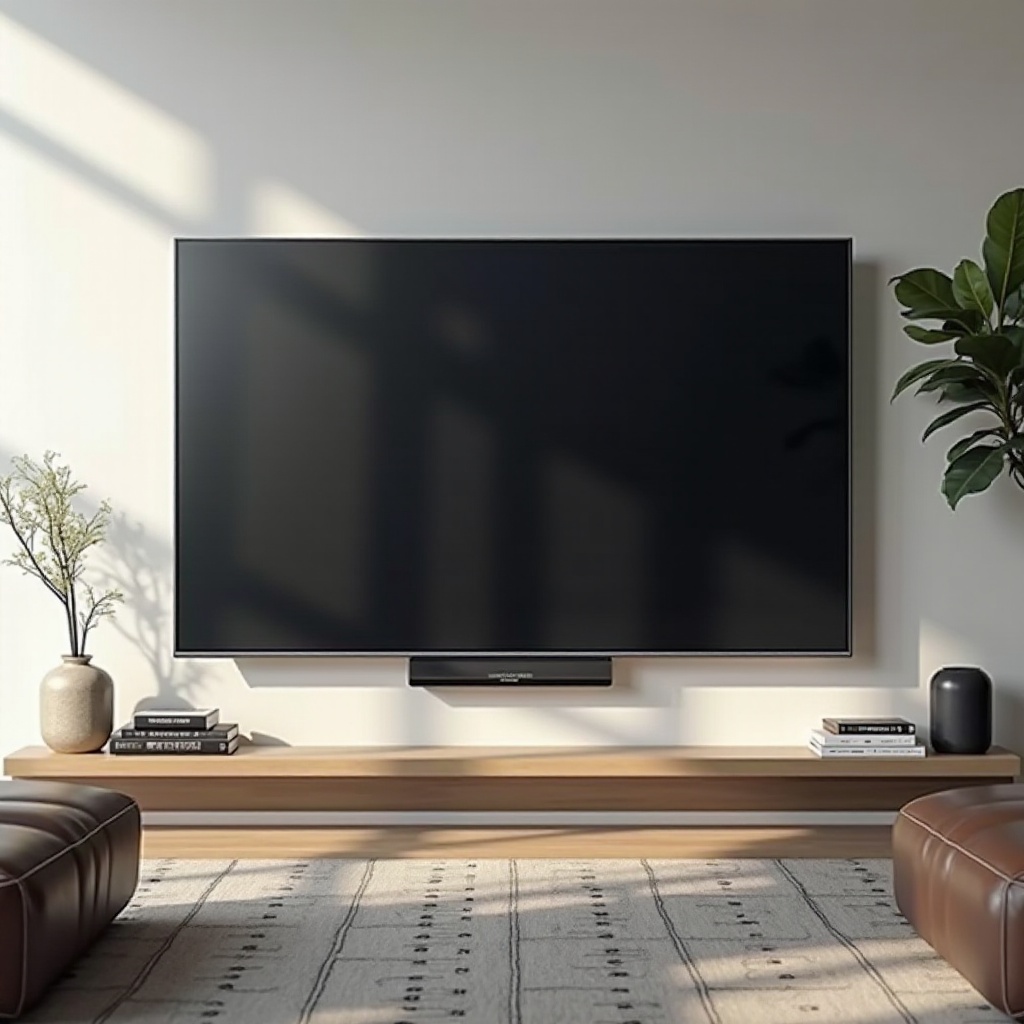
Samsung’s design philosophy focuses on a minimalist approach that enhances the viewer’s experience. This often means buttons are discreetly placed on the side or back, in a bid to maintain the TV’s clean lines and let the display stand out. While this approach adds elegance, it can initially confuse users who are uncertain where to find the essential controls.
Despite the concealed buttons, Samsung provides other methods for TV operation that offer more flexibility and functionality. Let’s first uncover where these buttons are located before looking at alternative control options.
Locating Buttons on Samsung TV Models
Samsung TVs generally share a common button placement, though there are variations by model and year.
-
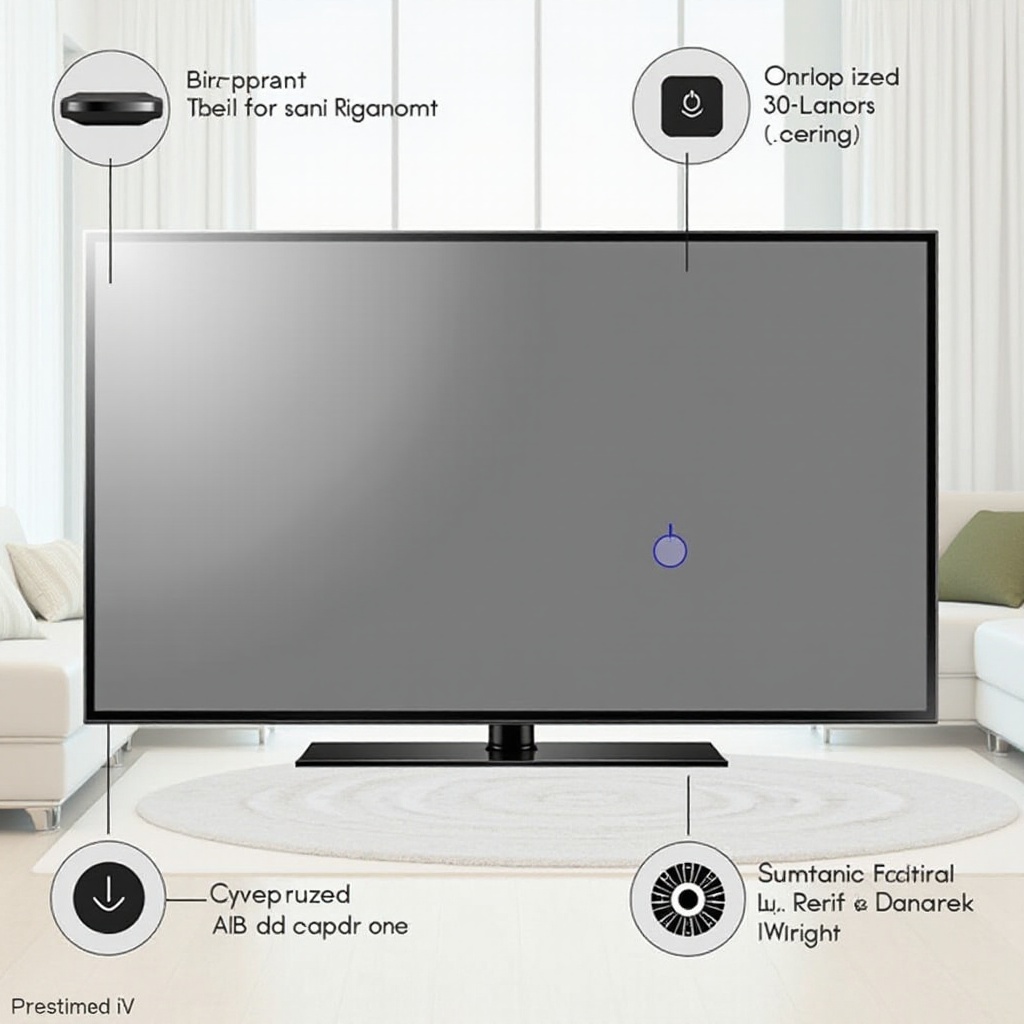
Common Button Placements Across Different Models: Most Samsung TVs position their buttons on the back, typically in the lower right corner. Some models feature buttons underneath the front panel, centrally positioned for accessibility, while premium models may use a multi-function button or joystick.
-
Differences in Curved vs. Flat Screen Models: Buttons on curved models can be found within the crease of the curve, blending with the design. Flat screen models may have buttons on the side or under the bezel, varying by series.
Grasping these button locations allows you to control your TV when traditional methods are unavailable, enhancing your viewing experience. Next, we explore the buttons’ functionalities available on these TVs.
Functionality of Samsung TV Buttons
Even with minimalistic designs, Samsung TV buttons serve multiple purposes crucial for basic operations.
-
Power and Menu Button Functions: The power button often serves dual functions, turning the TV on/off with a press and accessing the menu with a long hold. This dual function is useful when the remote isn’t at hand.
-
Adjusting Volume and Channel Navigation: Many models utilize a multi-functional button or joystick. This interface controls volume and channel navigation, allowing users to press or toggle for adjustments.
Gaining an understanding of these functionalities can significantly enhance your interaction with the TV. Despite the accessibility of physical buttons, Samsung offers a suite of alternative controls, which we will discuss next.
Alternative Control Methods for Samsung TVs
Samsung ensures a seamless user experience by providing various control options beyond traditional buttons.
-
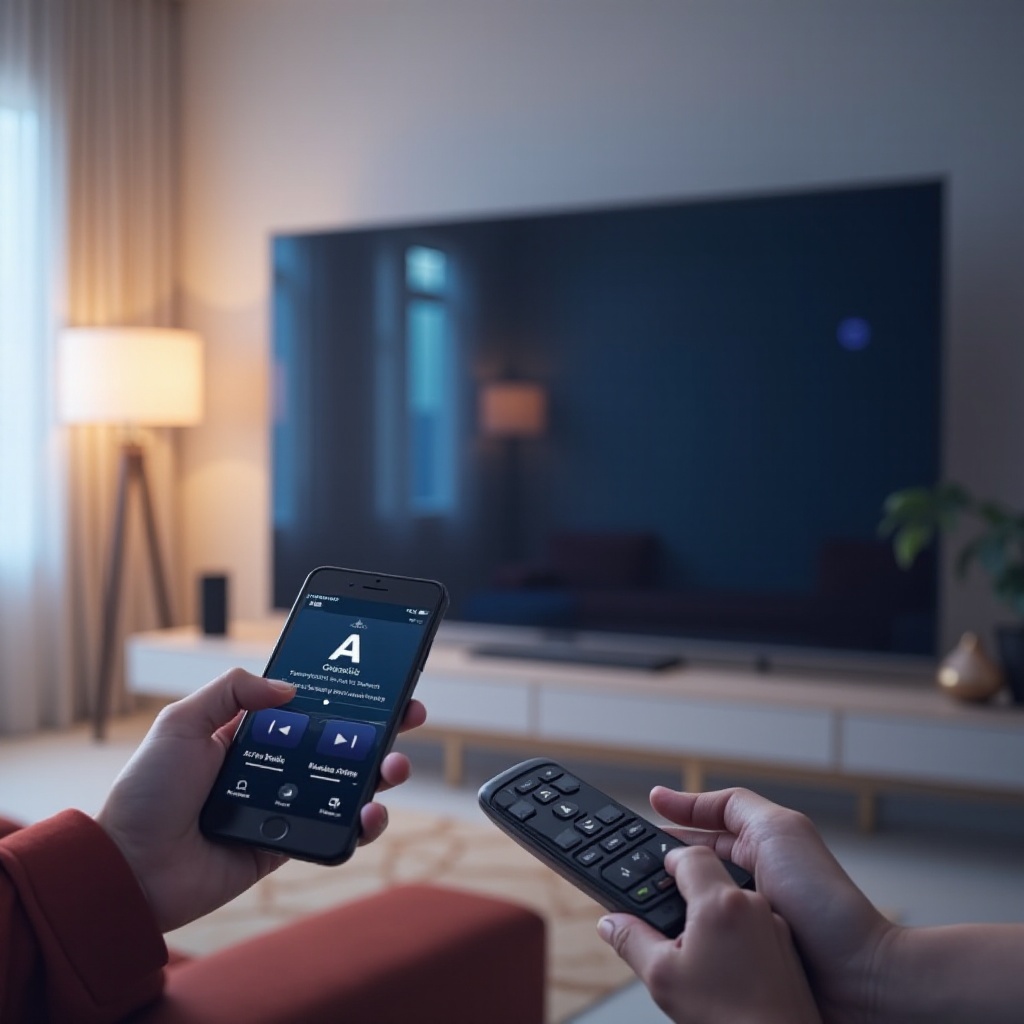
Using the Remote Control: The remote control remains vital for operating your Samsung TV effortlessly. Ensure it is functioning by regularly checking the batteries.
-
Samsung SmartThings App: Install this app to turn your smartphone into a remote, facilitating access to all TV functions without the physical remote.
-
Voice Assistant Compatibility: Many Samsung models support voice assistants like Bixby, Alexa, or Google Assistant, providing a hands-free operation mode.
These alternative methods emphasize Samsung’s commitment to user accessibility, making TV usage intuitive and versatile. Nonetheless, issues with buttons can arise, which leads us to troubleshooting.
Troubleshooting Button Issues
Occasionally, Samsung TV buttons may not function as expected, but simple troubleshooting steps can resolve most problems.
-
Unresponsive Buttons: Ensure no physical obstructions or dust build-up are around the buttons. A gentle cleaning with a soft cloth can often resolve problems.
-
Simple Reset Procedures: For persistent issues, unplug the TV from the power source for about 30 seconds and then reconnect it. Performing this reset can sometimes resolve unresponsive buttons.
These basic troubleshooting tips can help maintain smooth operations, keeping your TV experience uninterrupted.
Conclusion
Understanding where the buttons on your Samsung TV are located and how to use them effectively enhances your viewing experience. With a blend of physical and digital controls—from button usage to smartphone apps and voice control—Samsung provides flexible options to suit every user’s needs. This guide aims to empower you in navigating and troubleshooting your Samsung TV effectively.
Frequently Asked Questions
Can I operate my Samsung TV without a remote?
Yes, you can use the buttons on the TV itself or the Samsung SmartThings app on a smartphone.
How do I reset my Samsung TV using buttons?
Hold the power button for about five seconds to reset the TV. If it doesn’t work, unplug it for 30 seconds, then plug it back in.
What should I do if the buttons on my Samsung TV are stuck?
Gently clean the button area with a soft cloth to remove dust or debris. If issues persist, contact Samsung support.