
Introduction
Transforming your PC’s audio experience can significantly enhance your enjoyment of music, movies, and games. A key factor in achieving superior sound quality is choosing PC speakers with optical input. This digital connection is known for maintaining audio fidelity, providing a pristine listening experience compared to analog connections. In this guide, we’ll explore what optical input is, its benefits, how to select the best PC speakers, and how to set them up for optimal performance.
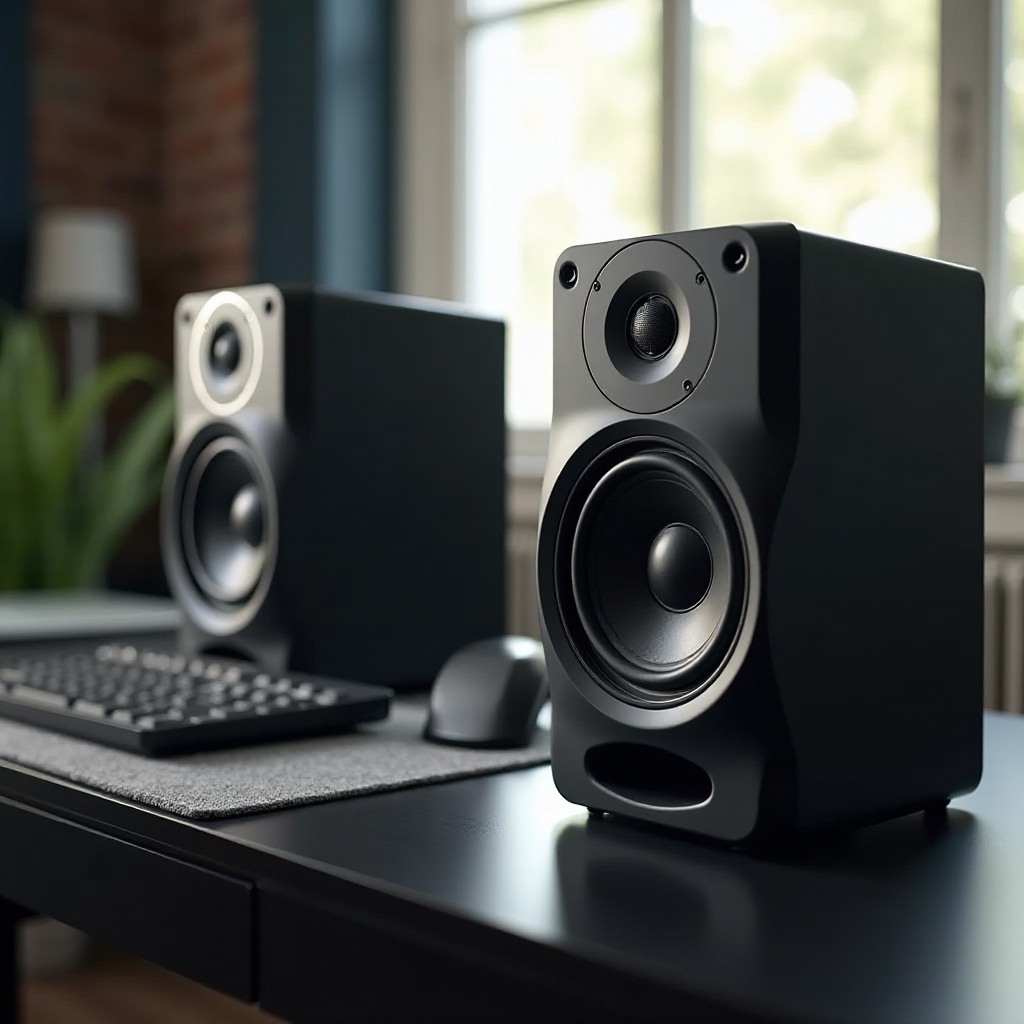
Understanding Optical Input in PC Speakers
What is Optical Input?
Optical input, sometimes referred to as TOSLINK or SPDIF, uses fiber optics to transmit audio signals in a digital format. This method offers a clear advantage by being immune to electromagnetic interference, thereby ensuring an unaltered audio output. Unlike analog connections, which can degrade sound due to electrical interference, optical input preserves the audio signal’s integrity, ensuring the highest quality transmission.
Advantages of Optical Input for PC Speakers
The use of optical input comes with several advantages, making it a favored choice for audiophiles. Its digital transmission ensures audio signals are delivered without any interference, resulting in a clearer sound. This lack of interference means that what you hear is true to the original recording, free from distortion or noise that often plagues analog connections. Additionally, optical cables are less prone to issues such as ground loops, which can cause unwanted hum or noise.
Learning about these features is crucial as we move forward to explore the additional benefits of PC speakers with optical input.
Key Benefits of PC Speakers with Optical Input
Enhanced Audio Quality
One of the primary benefits of using optical input is the superior audio quality it provides. Because the audio signal remains digital from the source all the way to your speakers, there’s minimal signal loss. This allows you to enjoy a pure sound experience, whether it’s the subtle notes of a classical piece or the dynamic range of a blockbuster film.
Reduced Latency and Sound Distortion
Optical input typically offers reduced latency, which is crucial for an immersive listening experience, especially in gaming and multimedia applications. The digital nature of optical cables ensures that audio signals are transmitted efficiently, minimizing lag or echo. Moreover, because optical cables resist electromagnetic interference, the sound remains crisp and undistorted.
With these advantages in mind, it’s easier to see why investing in PC speakers with optical input is beneficial. Let’s now move on to selecting the right model for your needs.
How to Choose the Best PC Speakers with Optical Input
Consider Audio Quality and Wattage
When selecting PC speakers, prioritize audio quality. Look for models that offer a well-balanced sound with clear treble and deep bass. Understanding the wattage of the speakers will give you an idea of their power output; typically, higher wattage equates to louder and more robust sound. Choose a wattage that fits the size of your room and your personal listening preferences.
Evaluate Connectivity Options
While optical input is a key feature, additional connectivity options can enhance flexibility. Consider speakers that offer Bluetooth or HDMI connections in addition to optical input. Some models might also provide USB ports or analog inputs, which can be useful for connecting a range of devices.
Assess Design and Build Quality
The design and construction of speakers can influence both aesthetics and performance. Opt for models crafted from high-quality materials that will not only look great in your setup but also deliver reliable performance over time. Consider sleek designs that seamlessly integrate with your existing décor, offering both style and substance.
Understanding how to evaluate these elements will guide you in selecting a suitable model. Next, let’s examine the top PC speakers with optical input available in 2024.
Top PC Speakers with Optical Input to Consider in 2024
Premium Models
- Speaker Brand & Model A
-
This model is celebrated for its exceptional sound quality and modern aesthetics. It’s equipped with multiple inputs, including optical and Bluetooth, providing versatile connectivity.
-
Speaker Brand & Model B
- A top choice among audio enthusiasts, this speaker offers an impeccable balance of audio clarity and bass. Its optical input minimizes latency, ideal for gamers and film buffs alike.
Mid-Range Options
- Speaker Brand & Model C
-
Delivering great value, this model features optical input along with Bluetooth and analog inputs, catering to diverse setup needs.
-
Speaker Brand & Model D
- Known for its sound quality and easy installation, this speaker offers excellent performance for those seeking quality without excessive costs.
Budget-Friendly Picks
- Speaker Brand & Model E
-
Ideal for budget-conscious users, this model includes essential features and offers reliable sound, perfect for everyday listening.
-
Speaker Brand & Model F
- This speaker is favored for its affordability and performance, delivering decent sound quality with optical input, making it a practical choice for users on a budget.
Having identified top models, let’s proceed to set up your speakers correctly.
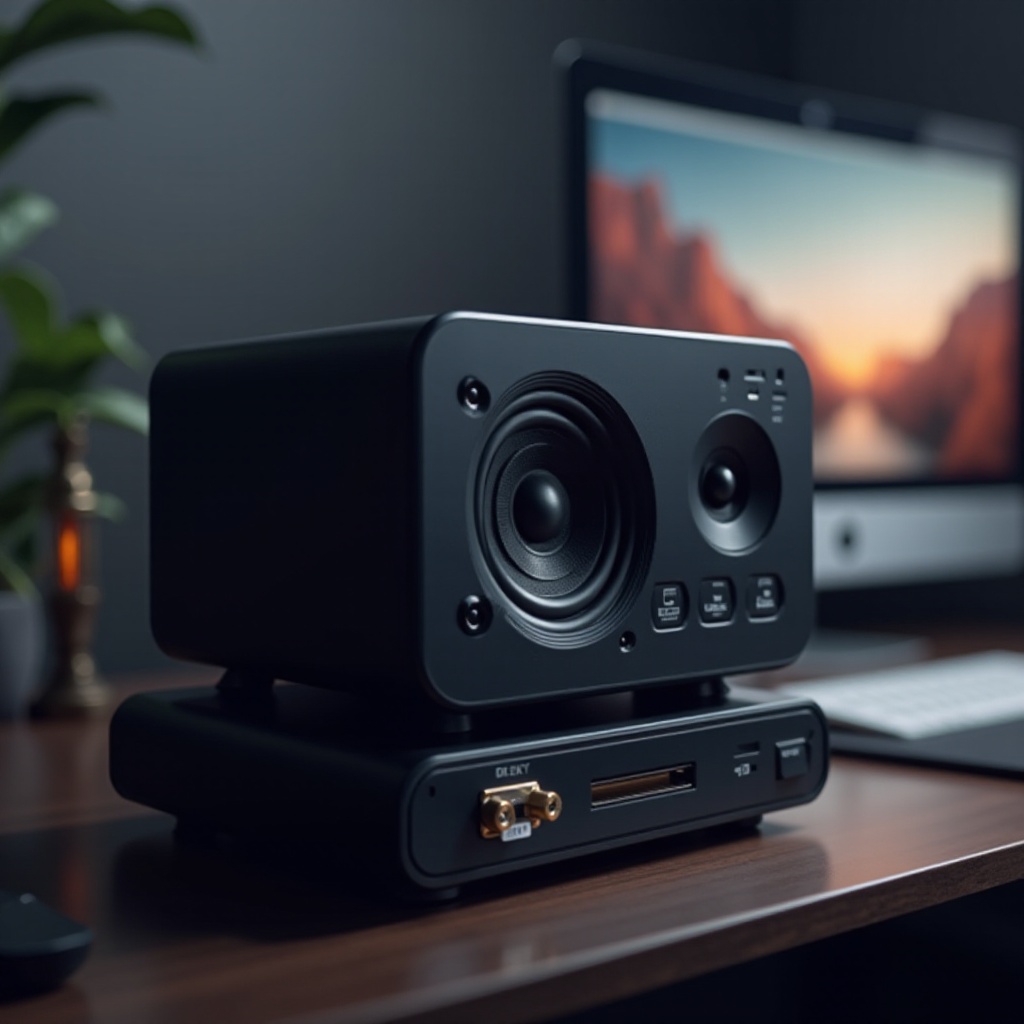
Setting Up Your PC Speakers with Optical Input
Step-by-Step Setup Guide
- Connect the Optical Cable:
-
Insert one end of the optical cable into your speaker’s input and the other into your PC’s output port. Ensure the connection is secure.
-
Configure Audio Settings on PC:
-
Access your PC’s sound settings, select the optical input as your default audio device, and confirm the changes.
-
Test the Connection:
- Play some audio to confirm that the connection is functioning as expected. If issues arise, recheck your settings and cable connections.
Troubleshooting Common Issues
- No Sound:
-
Double-check that cables are properly connected and the optical input is selected within your audio settings.
-
Interference:
-
Ensure the optical cable is free from obstructions or interference from other devices or cables.
-
Adjust Sound Settings:
- Review your sound settings on your PC to ensure the correct configuration.
Proper setup will allow you to fully enjoy the high-quality audio that PC speakers with optical input offer. Let’s wrap up what we’ve covered.
Conclusion
PC speakers with optical inputs provide a versatile and high-quality audio solution, making them an excellent choice for enhancing your multimedia experience. By understanding the technology, benefits, and setup process, you can select and configure a system that delivers outstanding sound performance. Upgrade your audio setup today and experience the clarity and depth only optical input can provide.
Frequently Asked Questions
What is the difference between optical input and HDMI?
Optical input transmits only audio signals in digital form, while HDMI can transmit both audio and video in high definition. Choose based on required features.
Can I use optical input with any PC?
Most modern PCs come with optical output. Check your PC’s specifications to confirm the presence of an optical output port.
How do I know if my PC supports optical input?
Look for a digital audio out port labeled ‘Optical,’ ‘S/PDIF,’ or ‘TOSLINK’ in your PC’s audio panel to verify compatibility with optical input.